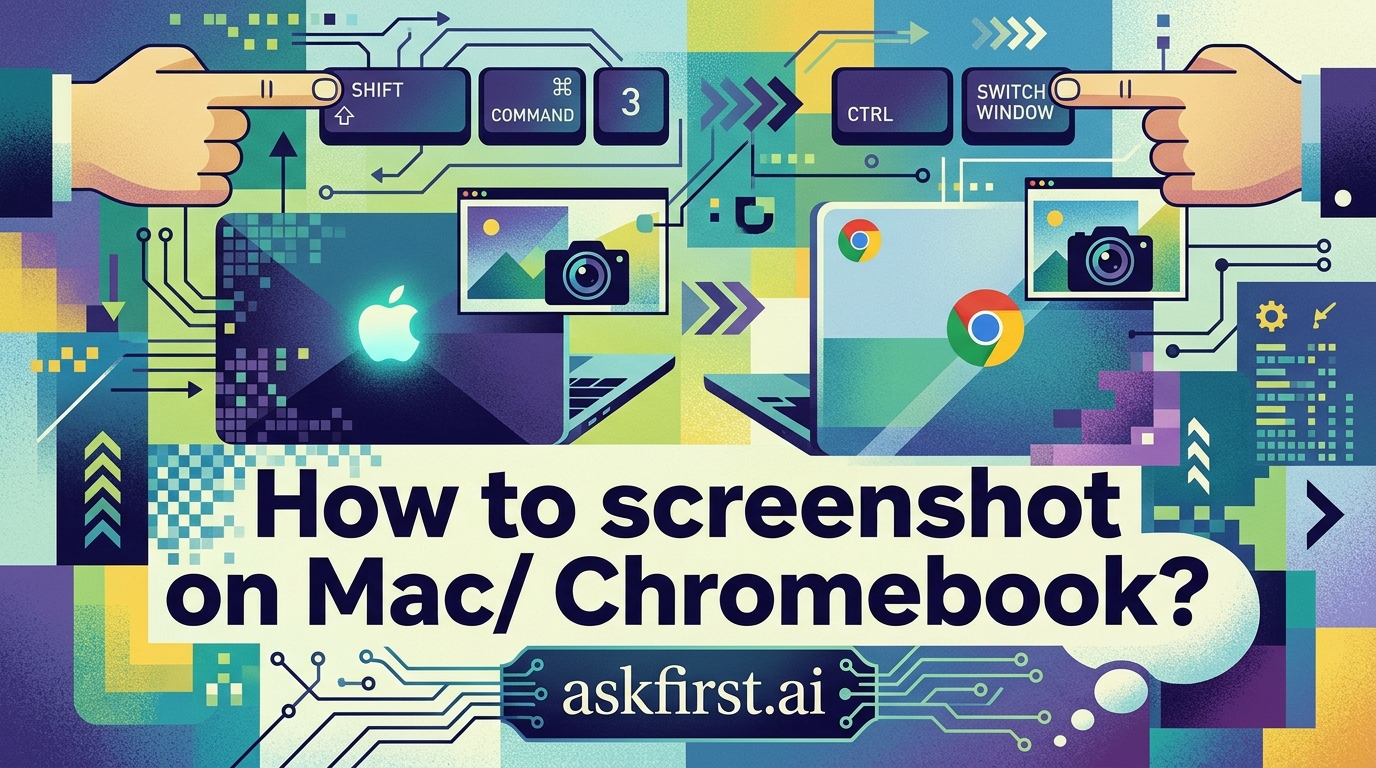
Capturing the screen is a fundamental skill for digital productivity, whether you are documenting a technical error, saving a reference image, or sharing a snippet of an article. While macOS and ChromeOS share some underlying Unix-like DNA, their approaches to screenshotting are distinct, reflecting the different philosophies behind a high-end workstation and a cloud-centric laptop.
Mastering Screenshots on macOS
Apple’s macOS provides a robust, multi-layered screenshot utility that has evolved significantly since the early versions of the operating system. Today, it is arguably the most powerful native screen-capture tool available on desktop platforms.
1. The Universal Shortcut: Command + Shift + 3
This command captures the entire screen. When you press these keys simultaneously, the system instantly saves a file to your desktop (usually named "Screenshot [Date] at [Time].png"). This is the most efficient way to grab a full-screen view without any further interaction.
2. The Selective Area: Command + Shift + 4
When you use this combination, your cursor transforms into a crosshair. You can click and drag to select a specific rectangular portion of your screen. As soon as you release the mouse button, the image is saved. If you press the Spacebar after hitting Command + Shift + 4, the cursor turns into a camera icon, allowing you to click on a specific window or menu bar to capture it in isolation, complete with a clean drop-shadow effect.
3. The Command Center: Command + Shift + 5
Introduced in macOS Mojave, this is the "Swiss Army Knife" of screen capture. Pressing these keys opens an overlay menu at the bottom of the screen. From here, you can choose to capture the entire screen, a selected window, or a specific region. More importantly, this menu allows you to record your screen as a video, set a timer (5 or 10 seconds), and choose the destination folder for your files.
Pro Tip: If you want to copy the screenshot directly to your clipboard instead of saving a file, simply add the Control key to any of the above commands (e.g., Control + Command + Shift + 4). This allows you to paste the image directly into an email, messaging app, or document. These methods are detailed extensively in the official macOS User Guide maintained by Apple Support.
Capturing the Screen on a Chromebook
ChromeOS, by contrast, prioritizes simplicity and integration with Google Drive. Because Chromebooks are often used in educational and corporate environments, the screenshot workflow is designed to be fast and intuitive.
1. Full Screen Capture: Ctrl + Switch Window
On a standard Chromebook keyboard, the "Switch Window" key is located in the top row (it looks like a rectangle with two lines next to it). Pressing Ctrl + Switch Window takes a picture of your entire display.
2. Partial Screen Capture: Ctrl + Shift + Switch Window
This is the most common method for users. It brings up a selection tool that allows you to drag a box over the specific area you wish to capture. Once you release the keys, the image is saved to your "Downloads" folder.
3. The ChromeOS Screen Capture Tool: Shift + Ctrl + Switch Window
Much like the macOS Command + Shift + 5 menu, this triggers a comprehensive capture interface. A toolbar will appear on your screen, allowing you to toggle between:
- Screenshot modes: Full, Partial, or Window capture.
- Screen recording: You can select whether to record the entire screen or just a specific window.
- Settings: You can choose where your files are saved (usually the Downloads folder or a selected Google Drive directory).
Managing Your Files: On a Chromebook, screenshots are automatically saved with a timestamp. You can access them by opening the "Files" app and navigating to the "Downloads" folder. If you have "Sync" enabled, these images may also appear in your Google Photos or Drive, depending on your cloud configuration. For further technical specifications, refer to the Chromebook Help Center documentation provided by Google.
Comparison and Best Practices
When deciding which device to use for complex documentation, consider the following:
- File Management: macOS excels at local file management. If you are a designer or editor, the ability to specify folders and format types (PNG, TIFF, JPG) via the "Options" menu in the Command + Shift + 5 overlay is invaluable.
- Cloud Integration: Chromebooks are inherently superior if you want your screenshots to be instantly available across multiple devices via the cloud. Because ChromeOS is built around the browser, it is trivial to drag a screenshot from your Downloads folder directly into a Google Doc or Gmail draft.
- Third-Party Tools: If native tools feel limiting, experts like those at TechRadar often suggest tools like CleanShot X for macOS or the Nimbus Screenshot browser extension for Chromebooks. These provide advanced features such as scrolling screenshots, text recognition (OCR), and cloud hosting with shareable links.
Conclusion
Whether you are navigating the sophisticated, window-managed environment of a MacBook or the streamlined, web-centric interface of a Chromebook, the ability to capture your screen is essential. macOS offers granular control and professional-grade options for designers, while ChromeOS provides a fast, reliable, and cloud-integrated experience for the average user. By committing these shortcuts to memory—specifically the Command + Shift + 4 sequence for Mac and the Ctrl + Shift + Switch Window sequence for ChromeOS—you will significantly reduce the time spent on administrative tasks and improve your overall digital workflow efficiency.